Repository navigation
Reverse Shells
📖 Canonical version: read this page on the official docs site — https://www.redamon.org/docs/reverse-shells. The GitHub wiki is a mirror.
The Reverse Shell tab (formerly "Remote Shells") provides a unified view of every active session established by the AI agent — meterpreter shells, raw reverse/bind shells, background handlers, and netcat listeners. Sessions appear automatically within seconds of being opened, and each one can be interacted with directly from the browser.
Note: This tab manages remote sessions opened by the AI agent. For direct interactive shell access to the Kali sandbox, use the RedAmon Terminal tab instead.
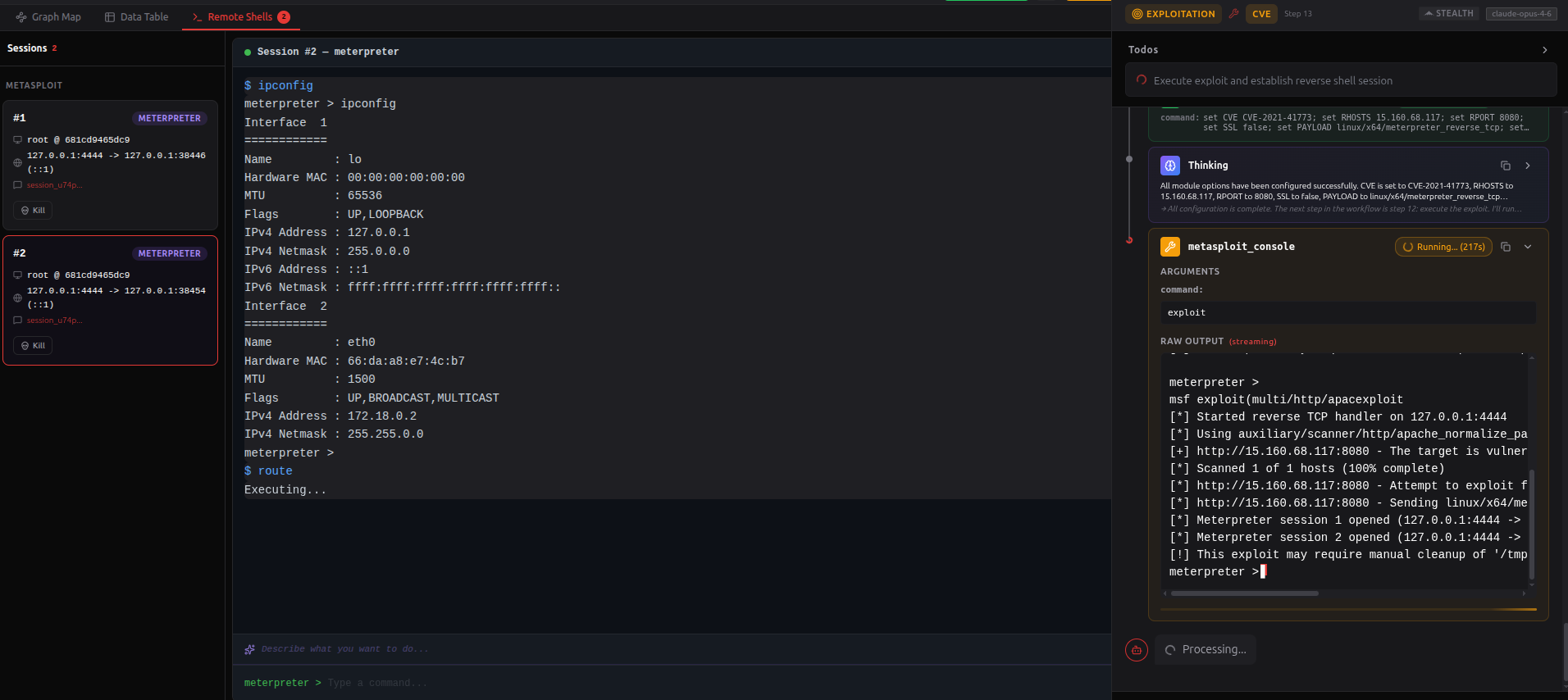
When the AI agent exploits a target and establishes a session (e.g., a meterpreter reverse shell), it automatically appears in the Reverse Shell tab. You can select any session to open an interactive terminal, send commands, and see the output in real time — without switching to a separate tool or terminal window.
A reverse payload's connection must reach your own Kali sandbox, which publishes no port by default. Either turn on your own tunnel in Global Settings → Tunneling (ngrok or chisel, see Tunnel Providers), or, when the operator gave the sandboxes a port pool, use your sandbox's pool port, which the agent names (see Reverse Shells on the Same LAN). No tunnel is shared by the instance: an instance tunnel stored by an earlier version can only be turned off. Without either, use a bind payload.
Your sandbox has at most one port a target can reach directly: its port from the operator's pool, which is your LPORT. The panel shows it above the list ("Your reverse-shell port (LPORT): 45003"), or says there is none: "No reverse-shell port: use your tunnel or a bind payload", or "No reverse-shell port: the port pool is full. Use your tunnel or a bind payload" when every pool port is in use or kept for someone else. The RedAmon Terminal shows the same line and its login message names it ($MSF_REVERSE_PORT in the shell), and Metasploit in your sandbox uses it as its default LPORT.
-
One port for all of your chats. Every chat and project of yours shares your sandbox, its one Metasploit console and this one port, and only one handler can listen on it. The agent checks
jobsand reuses a handler already listening for the payload it needs. When a handler cannot start because the port is taken, the Metasploit output says which of your jobs (or which other process, such as anncyou started) holds it, and how to stop it. A shell a shared handler catches is linked to the chat that started that handler, and every chat of yours on that project sees it withsessions -l. -
It stays yours for a while. When your sandbox stops, its port is kept for you for 24 hours (
KALI_SANDBOX_PORT_HOLD_HOURS): nobody else gets it, and your next sandbox gets it back. A shell that calls back late (a phishing payload opened the next day) never lands in someone else's sandbox meanwhile. -
One inbound port only. Nothing else of your sandbox is reachable from a target, so payloads that make the target download from you (Metasploit web delivery, an HTA server,
office_word_hta, a stager that fetches its payload) cannot work, through the pool or a tunnel. Use a standalone stageless payload or a self-contained document, and upload anything further over the session once you have one. - After a restart your sandbox has none of its earlier sessions, handlers or tunnels; the agent is told so, with its port (the same one while the hold lasts).
The left panel displays all active sessions grouped by type:
- Metasploit sessions — Meterpreter and raw shell sessions managed by the Metasploit Framework
- Other sessions — Non-Metasploit listeners (netcat, socat) registered by the agent
- Background jobs — Active Metasploit handlers waiting for incoming connections
Each session card shows the session ID, type (meterpreter/shell), connection details, and the chat session that created it. Action buttons allow you to kill a session or upgrade a raw shell to meterpreter.
Every person's agent runs in their own Kali sandbox, and each sandbox runs its own Metasploit console, which numbers its sessions from 1. The list gathers the sessions, jobs and listeners of every running sandbox, so each card also carries a tag naming the sandbox it lives in, and two cards may show the same session number from two sandboxes. The sandboxes are asked at once; when one does not answer within a few seconds, the line "1 sandbox did not answer; its sessions may be out of date or missing" (or "N sandboxes did not answer; their sessions may be out of date or missing") shows above the list, never an error page, and the cards that sandbox listed last stay for up to a minute, marked not refreshed.
Every sandbox's sessions are gathered into one list, so the list is filtered per person:
- Members see the sessions and listeners opened by agent runs of their own projects, each naming its project. Nothing about anyone else's appears, not even a count.
- Background jobs (Metasploit handlers) belong to no project but to the sandbox they run in: each person sees the jobs of their own sandbox and can stop them, so a handler left waiting no longer keeps the sandbox running. An admin acting as a member sees those of that member's act-as sandbox.
- Admins, and members who kept All shell sessions at the update (see Shared Tools and Legacy Access), see every session, every background job and the sessions no chat opened (for example one opened by hand in the Kali terminal).
- Typing into or killing a session, or killing a job, outside your view answers not found before anything reaches the console. Each interaction and kill is recorded in the audit log with the session and project, never the command.
With the permissions switch on, the tab needs agent:sessions (in Default member, not in Recon operator or Read-only analyst): without it the panel, and the shells card on Insights, show "You do not hold the permission this action needs" instead of the list, and every session and listener beyond your own projects, and every job beyond your own sandbox, needs platform:shell_sessions (an admin profile that holds it, or an override). An admin acting as a member keeps the admin's view. When a session closes or Metasploit restarts, its link to the chat is dropped, so a reused session number never shows under the previous session's project. A session counts for its project only when the chat that opened it belongs to the person whose sandbox holds it and that sandbox mounts the project; any other session is shown only to those who see every session.
A session lives in its sandbox and ends when the sandbox stops. A sandbox that holds a live session, a background job or an active tunnel is kept running while unused for up to 8 hours; from the seventh hour the panel shows "Your Kali sandbox stops at HH:MM because it has not been used for 7 hours; use it to keep it running". Typing into a session, a chat run or the terminal counts as use. A sandbox also stops, with every session in it, when its person loses access to a project it mounts, at an emergency stop (PAUSE ALL), and when an administrator stops it from IAM → Operations.
Clicking a session opens an interactive terminal on the right panel. You can type commands directly and see the output — just like a local terminal, but running inside the Kali sandbox that holds the session, against the remote target.
The terminal supports:
- Command history — use arrow keys to navigate previous commands
-
Session-aware prompts — shows
meterpreter >for meterpreter sessions and$for raw shells - Agent busy detection — if the AI agent is mid-exploit, the terminal shows a warning banner and queues your interaction
Above the terminal command input sits the Command Whisperer — an AI-powered input where you describe what you want in plain English, and your Command whisperer model translates it into the correct command for the current shell type.
The model is yours, not the project's: it is chosen once for your account, runs on your own provider keys, and a small model is enough. The first time you send a request, you are asked to choose one. Under the input, Model: X · Change shows it and lets you switch; it is also in Global Settings → LLM Providers → Models by feature.
For example:
-
"list all files containing passwords" →
search -f *password*(meterpreter) orfind / -name "*password*" 2>/dev/null(shell) -
"dump password hashes" →
hashdump(meterpreter) orcat /etc/shadow(shell) -
"check network interfaces" →
ifconfig(meterpreter) orip addr(shell)
The generated command auto-fills the terminal input for review — it does not auto-execute. You always have the chance to edit or discard the suggestion before pressing Enter.
The Reverse Shell tab and the AI agent runs of the sandbox's person share that sandbox's Metasploit console. When the agent is actively running a command (e.g., a long exploit or brute force attack), session interaction may be briefly delayed. The terminal will display an "Agent is executing" banner during these moments. Session listing always works regardless of agent activity, as it reads from a background cache.