Repository navigation
Global Settings
📖 Canonical version: read this page on the official docs site — https://www.redamon.org/docs/global-settings. The GitHub wiki is a mirror.
Global Settings is the personal configuration page for the current user. Settings configured here apply across all projects. It is accessible from the gear icon in the top navigation bar (far right).
Only you change your Global Settings. An admin acting as you sees them with every secret masked and cannot save them (a passwordless managed account excepted; see Identity & Access Management). Changing where a stored secret is sent asks you to type that secret again: an LLM provider's base URL or type, the GitHub Enterprise host, the chisel server URL, an MCP Tool Plugin's URL (its token and Extra Headers) or a stdio plugin's command (its env values). A secret you leave masked is never sent to an address it was not typed for. Re-pointing a saved provider, MCP Tool Plugin, Enterprise host or chisel server also asks for your own password, since your prompts and tool calls follow it.

The page is divided into eight sections: LLM Providers, Agent Skills, Chat Skills, Tradecraft, API Keys & Tunneling, MCP Tool Plugins, MCP Server, and System.

Configure the AI model providers that power the agent. All providers added here become available in the model selector of every project's settings.
Each provider card shows its icon, name, type, and — for OpenAI-Compatible entries — the model identifier. You can edit, delete, or test each provider from its card.
Click Add Provider to register a new provider. Choose the type (OpenAI, Anthropic, Google Gemini, DeepSeek, GLM, Kimi, Qwen, xAI, Mistral, OpenRouter, AWS Bedrock, or OpenAI-Compatible), enter your credentials, and test the connection before saving. Each form includes a "Get API key →" link to the provider's official console.
For full details on supported providers, model discovery, and setup guides, see AI Model Providers.
With the IAM console on, Provided by your administrator lists the LLM providers Root shares with a permission set you hold: their models are in every model picker as Instance: <name>, their keys are never shown, and they count as a provider for the new-project check and Models by feature. They are offered even if you may not add providers of your own.
Below the providers list, the Jev providers section holds your named keys for TypeSafe Jev, each on one of two backends (TypeSafe directly, or OpenRouter), a decision model that four recon AI hooks (FFuf extensions, Nuclei tags, WAF classification, takeover disambiguation) can use instead of the LLM, and that eight Jev-only recon hooks run on (page-type labels, FFuf base-path ranking, Hakrawler seed order, tool health, serialized-object ranking, and the Route Exposure Scan's route ranking, login-wall check and lead assessment). It is not a chat provider: it never appears in a model picker and does not count as a provider for any gate. Add Jev provider opens a form with the Jev backend choice, a name and the key, with the model pinned to Jev 1.13; save as many as you need, and select one per project in its Target tab. Deleting one clears it from the projects that selected it.

Below the TypeSafe AI (Jev) section, Models by feature chooses the model for each AI feature other than the agent itself. Each feature runs on its own model, chosen once for your account and used in all your projects. A feature never borrows the project's agent model, another feature's model or a hidden default.
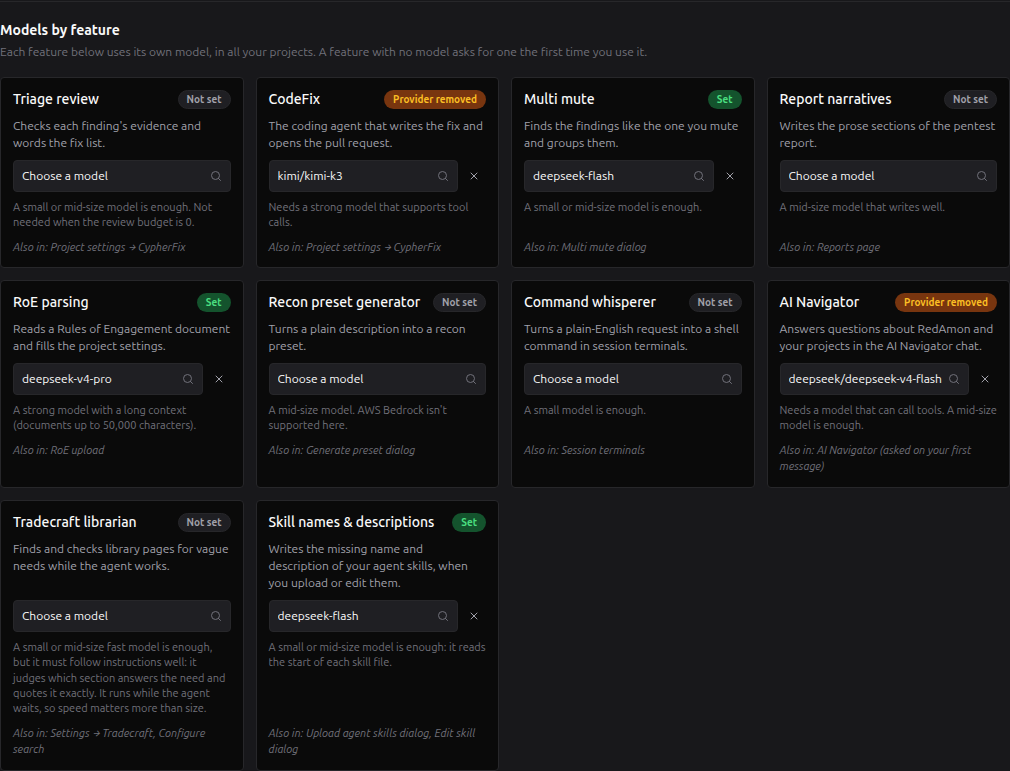
The section shows one tile per feature, four to a row (two on a narrow window, one on a phone). Each tile has the feature's description, a model picker listing your providers' models, a status chip, a hint on the size of model it needs, and Also in:, the other places that change the same setting. A pick is saved at once; the × next to the picker clears it. While one tile saves, the others wait, so a second pick is never lost.
| Chip | Meaning |
|---|---|
| Set | The feature runs on this model |
| Not set | The feature asks for a model the first time you use it |
| Provider removed | The saved model is not among your providers' models any more. The feature asks for a new one the next time it runs |
With no provider yet, the section shows Add an LLM provider above to choose models for these features. If the model list cannot be loaded, each tile shows its saved model read-only, with Retry.
| Feature | What it does | Hint on the tile | Asks for a model |
|---|---|---|---|
| Triage review | Checks each finding's evidence and words the fix list | A small or mid-size model is enough. Not needed when the review budget is 0 | When you start a triage run that reviews findings |
| CodeFix | The coding agent that writes the fix and opens the pull request | Needs a strong model that supports tool calls | When you start the CodeFix agent |
| Multi mute | Finds the findings like the one you mute and groups them | A small or mid-size model is enough | When you press Multi next to a Mute button |
| Report narratives | Writes the prose sections of the pentest report | A mid-size model that writes well | When you press Generate Report |
| RoE parsing | Reads a Rules of Engagement document and proposes the project settings it implies | A strong model with a long context (documents up to 50,000 characters) | When you press Upload RoE or Replace RoE |
| Recon preset generator | Turns a plain description into a recon preset | A mid-size model. AWS Bedrock isn't supported here | When you press Generate in the Generate with AI dialog |
| AI Navigator | Answers questions about RedAmon and your projects in the AI Navigator chat | Needs a model that can call tools. A mid-size model is enough | When you send your first message to AI Navigator |
| Command whisperer | Turns a plain-English request into a shell command in session terminals | A small model is enough | When you send a request from a session terminal |
| Tradecraft librarian | Finds and checks library pages for vague needs while the agent works (tradecraft_ask) |
A small or mid-size fast model is enough, but it must follow instructions well: it judges which section answers the need and quotes it exactly. It runs while the agent waits, so speed matters more than size | When you add a Tradecraft resource or turn one on, while Librarian use is Agent decides (Configure search); never with Search only |
| Skill names & descriptions | Writes the missing name and description of your agent skills, when you upload or edit them | A small or mid-size model is enough: it reads the start of each skill file | When you press Generate missing with AI in the upload dialog, or Generate with AI in a skill's Edit dialog |
Plugins. Each installed plugin that may call a model gets a tile of its own after the features above, with the plugin's name, a plugin badge and the plugin's own line on what it uses the model for (for Skiller: Reads a chat session and writes the improved skill text). It works like the others: Not set until you choose, saved for your account, used in all your projects, and the first time the plugin needs a model it asks with Choose a model for <plugin>. A plugin's calls run on your providers through RedAmon (the plugin never sees a key) and count towards that plugin's own daily limit. A plugin's tile disappears when the plugin is disabled or uninstalled.
A feature with no model asks for one before it does anything. The dialog Choose a model for <feature> lists only the models that feature can use, with the tile's hint. Save and continue saves the pick to your account and carries on with what you were doing; Cancel stops it. Multi mute asks inside its own dialog, with Save and run. Nothing is filled in for you (one exception: the Tradecraft librarian's dialog pre-selects the model you saved for the previous version's Tradecraft section picker, when it is still available), so each feature asks once, unless you set them all here first.
With no provider yet, the dialog says You have no LLM provider yet, with Add provider (it opens this tab in a new browser tab) and Check again for when you have added one. When none of your models suits the feature, for example only AWS Bedrock models for the Recon preset generator, it says None of your models can run <feature>.
Each feature also shows its model where it is used, with a link that opens the same picker:
| Where | What it shows |
|---|---|
| Project settings → Engagement Record, next to Upload RoE / Replace RoE, and the graph dashboard's RoE tab when the project has no document | Model: X · Change (RoE parsing) |
| The Generate with AI dialog of the recon presets | Model: X · Change (Recon preset generator) |
| The Reports page, next to Generate Report | Narratives model: X · Change |
| Session terminals, under the Command Whisperer input | Model: X · Change |
| The Multi mute dialog | Model: X · Change |
| Project settings → CypherFix Settings | Two pickers, Triage review model and CodeFix model, marked Applies to all your projects · also in Global Settings → LLM Providers |
| The agent-skill upload dialog (Global Settings → Agent Skills, a project's Agent Skills tab, the chat's Agent Skills window) and a skill's Edit dialog in Global Settings | Model: X · Change (Skill names & descriptions) |
With no model saved, the line reads not set and the link reads Choose.
- Triage review is needed only when a run reviews findings, that is when Priority Board: findings the AI reviews is above 0 in the project's CypherFix settings. With a budget of 0 and no model, triage still ranks every finding and writes the fix list in its standard wording, and asks for nothing. With a model set, the model reviews the findings and also words the fix list. After you switch models, the next run reviews the findings again once, because a review is reused only by the model that made it. See Which model runs it.
- CodeFix does not start without its model. There is no per-project CypherFix model any more: a value saved on a project earlier is ignored.
- Tradecraft librarian has no fallback to the agent's model. While Librarian use is Agent decides, adding a resource or turning one on asks for it; when you saved a model for the previous version's Tradecraft section picker and it is still available, the dialog suggests it (Suggested: … Nothing is saved until you confirm.), otherwise it suggests nothing. With Search only the agent gets plain search and no model is needed. In a chat, a librarian with no usable model answers the plain search results. It is also shown in Global Settings → Tradecraft (Librarian model: X (change)), in Configure search and in a project's Tradecraft accordion. See The librarian and The librarian model.
- Skill names & descriptions never sends a skill file that contains a key or token (an AWS key, a JWT, a private key...) to the model: that file's row says so, and you type its name and description yourself. The batch's other names, which it is shown so it does not reuse them, leave out any that looks like a key or token. What it writes fills only empty fields and is saved only when you press Upload or Save.
Each feature runs on the providers and keys of the person it runs for: yours for what you start, and the project owner's for Triage review and CodeFix, which run for the project. An admin acting as a user runs on that user's models and keys. A model has to name a provider that still exists: a custom/… model whose provider was deleted is never swapped for another of your custom providers; the feature asks for a new model instead.
| Message | What it means | What to do |
|---|---|---|
| Your model X could not be used | The provider refused the model or the key, or the provider is gone. Its own error text goes to the agent log, with keys redacted, and is never shown | The model picker opens: choose another model, or fix the provider above |
| Couldn't load your LLM providers, try again | The agent could not read your provider list | Try again |
| The agent service isn't running | The webapp could not reach the agent | Start the stack (./redamon.sh up) |
| The model took too long, try again | The model did not answer in time | Try again, or choose a faster model |
| The agent is older than the webapp: rebuild it | The agent image was built before this feature | Rebuild the agent and the webapp together (./redamon.sh update) |
These keep their own settings:
- the agent's model (project settings → Agent Behaviour), which also answers plain-English graph queries;
- the recon AI pipeline model;
- the target guardrail;
- each Tradecraft resource's own model, used when the resource is ingested (crawl decisions, tagging, the summary);
- the models a new project starts with, and the AI Attack Surface judge.
Store API keys for external OSINT and reconnaissance services. These keys are saved per-user in the database and are used by both the AI agent's tools and the recon pipeline at runtime.
| Field | Used by | What it enables |
|---|---|---|
| Tavily API Key | AI Agent |
web_search tool — CVE research, exploit lookups, and general web queries |
| Shodan API Key | AI Agent, Recon Pipeline, Uncover |
shodan tool -- internet-wide OSINT (host info, reverse DNS, domain DNS, passive CVEs) |
| SerpAPI Key | AI Agent |
google_dork tool — Google dorking OSINT (site:, inurl:, filetype:). Free tier: 250 searches/month |
| PDCP API Key | AI Agent |
cve_intel tool — ProjectDiscovery vulnx CVE database (NVD + CISA KEV + EPSS + PoCs + Nuclei templates). Optional: works anonymously at 10 req/min; key lifts the rate limit. Free signup at cloud.projectdiscovery.io. The key is never written to docker-compose.yml, env vars, or build args — it lives only in your user settings and is silently injected per call. |
| NVD API Key | Recon Pipeline | NIST NVD API key — increases CVE lookup rate limit from 5 to 120 requests/30s |
| Vulners API Key | Recon Pipeline | Vulners CVE database — alternative to NVD for vulnerability lookups with richer exploit data |
| URLScan API Key | Recon Pipeline | URLScan.io OSINT enrichment. Without a key urlscan returns only the last 30 days of visits, 100 per search, without its verdicts, and RedAmon reads at most 1,000 visits per domain; with one it reaches older visits (how far depends on your urlscan plan), where the rare leaked links and old origin IPs are. Origin Discovery's urlscan source uses it too |
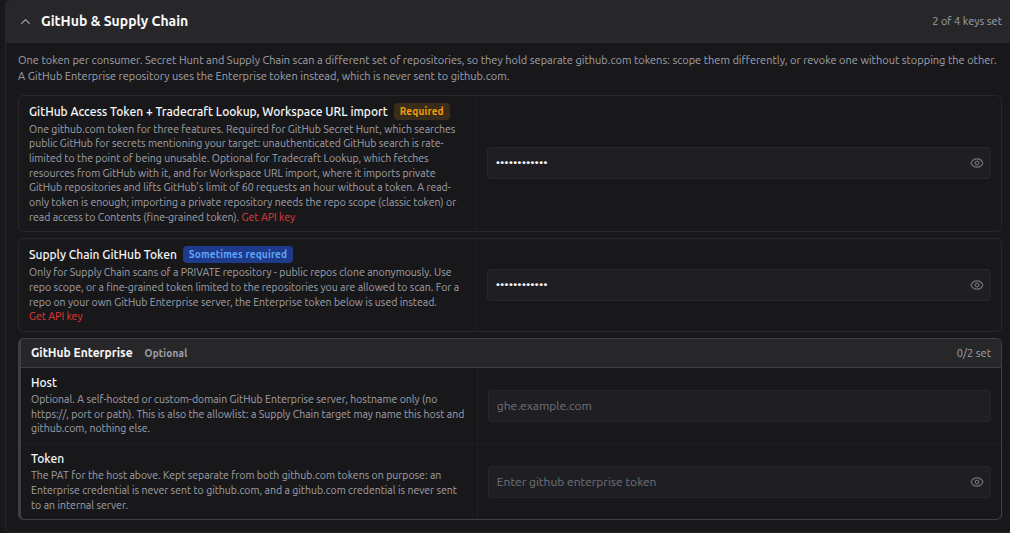
| GitHub Access Token | GitHub Secret Hunt, Tradecraft Lookup, Workspace URL import, White-box source code | One Personal Access Token (ghp_...) for four features. Required by GitHub Secret Hunting, which searches public GitHub for secrets mentioning your target; optional for Tradecraft Lookup fetching a resource from GitHub (a CVE archive is indexed, so search finds its CVEs, only with a token; in chats it is used only in your own, and only for requests inside each resource's own repository), and for importing from GitHub into the Agent Workspace (private repositories and a higher GitHub rate limit), which the row names beside it, and for attaching a GitHub repository as a project's source code for white-box conversations (sent once per download, never stored with the project). A read-only token is enough; importing a private repository needs the repo scope (classic token) or read access to Contents (fine-grained token). Named GitHub Secret Hunt Token before 7.6.0. Rendered in the GitHub & Supply Chain drawer. |
| Supply Chain GitHub Token | Supply Chain | A SEPARATE ghp_... token, used only when Supply-Chain Scanning audits a private github.com repository (public repos clone anonymously). Kept apart from the Secret Hunt token so the two can be scoped differently and either can be revoked without stopping the other. Requires repo scope, and read:org for organization scanning; a fine-grained token scoped to the repositories you are allowed to scan is safer. |
| Censys API Token | Recon Pipeline, Uncover | Censys Platform personal access token -- IP host data, open ports, TLS certs, ASN via Platform API v3. Free tier available at search.censys.io |
| Censys Organization ID | Recon Pipeline, Uncover | Paired with Censys API Token. Found on your Censys account page |
| FOFA API Key | Recon Pipeline, Uncover | FOFA internet asset search enrichment -- IP:port pairs, HTTP titles, server headers, geolocation. Supports legacy (email:key) and modern (key-only) auth formats. Supports key rotation |
| OTX API Key | Recon Pipeline | AlienVault Open Threat Exchange — threat reputation, malware families, passive DNS, MITRE ATT&CK. Optional: OTX enrichment is enabled by default and works anonymously (1,000 req/hr). Adding a key raises the limit to 10,000 req/hr. Supports key rotation |
| Netlas API Key | Recon Pipeline, Uncover | Netlas internet intelligence -- ports, HTTP response data, geolocation, TLS certs, DNS records, WHOIS. Supports key rotation |
| VirusTotal API Key | Recon Pipeline | VirusTotal reputation for domains and IPs — AV verdicts, reputation score, categories, JARM fingerprint. Free tier: 4 requests/minute (configurable). Supports key rotation |
| ZoomEye API Key | Recon Pipeline, Uncover | ZoomEye host search -- ports, service banners, device/OS fingerprints, geolocation, ASN, SSL info. Supports key rotation |
| CriminalIP API Key | Recon Pipeline, Uncover | Criminal IP threat intelligence -- risk score, threat tags (VPN/Tor/proxy/C2/scanner), geolocation, abuse history. Supports key rotation |
The ngrok Auth Token, Chisel Server URL and Chisel Auth fields, and Enable tunnels, configure your own reverse-shell tunnel, which runs in your own Kali sandbox with your own credentials (setup: Tunnel Providers). They are fields of your account, whatever RBAC_IDENTITY_ENABLED says. Turning a tunnel on or changing its settings needs the Tunnels permission (admins, and members who kept the Tunnel settings legacy grant at the update, see Shared Tools and Legacy Access); saving with Enable tunnels ticked starts your sandbox if needed and the tunnel in it. Everyone sees Tunnel status for their own tunnel, read from the tunnel client's own log: On (ngrok) or On (chisel) once it forwards, Connecting (…) while it starts, Failed (…): reason when it cannot (a chisel server that another person's tunnel already uses answers remote port 4444 in use on the chisel server: each person needs their own chisel server), Off, or Status unavailable; and Turn my tunnel off while one runs or the switch reads on, which needs no permission. A changed Chisel Server URL needs the Chisel Auth typed again and your password.
A chat uses your tunnel only when both switches say so: your own tunnel is on here, and the project's Tunnel Provider (Payload Direction, in the project settings) names it. Your tunnel reaches port 4444 inside your sandbox; your sandbox's port from the operator's port pool, when it has one, is reached directly, without a tunnel. An admin acting as you works in a separate sandbox that never uses a tunnel.
Your sandbox starts again without a tunnel and turns Enable tunnels off, so after it has stopped (it does after a while unused) turn the tunnel on again. While an admin acts as you, a tunnel is never turned on or changed; turning it off is allowed.
The Secret Multiscanner has its own key group, one key per source, rendered under the heading Secret Multiscanner on this page. They are deliberately separate from the github.com tokens above. A source whose key is mandatory cannot start until it is set, and the scan card names the missing one. Keys are stored per user and are never included in a project export.
| Field | Source | Mandatory? |
|---|---|---|
| Secret Multiscanner GitHub Token | github, github deleted commits | Always. Unauthenticated GitHub allows only 60 requests/hour, which the scan exhausts immediately |
| Secret Multiscanner GitLab Token | gitlab | Always |
| Secret Multiscanner Postman Token | postman | Always |
| Secret Multiscanner CircleCI Token | circleci | Always. The token defines the scan scope |
| Secret Multiscanner Travis CI Token | travisci | Always. The token defines the scan scope |
| Secret Multiscanner Docker Token | docker | Only for a namespace scan or private images. Docker Hub allows 10 anonymous pulls/hour per IP |
| Secret Multiscanner AWS Access Key ID / AWS Secret Key | s3 | Unless "Use cloud environment IAM" is on |
| Secret Multiscanner AWS Session Token | s3 | Optional, STS credentials only |
| Secret Multiscanner GCP Service Account (JSON) | gcs | Unless "Without auth" or cloud-environment ADC is on |
| Secret Multiscanner Hugging Face Token | huggingface | Optional. Needed for private or gated assets |
| Secret Multiscanner Jenkins Username / Password | jenkins | Optional. An exposed instance scans without them |
| Secret Multiscanner Elasticsearch Username / Password / API Key / Service Token | elasticsearch | Optional. If secured, set exactly one of the three styles |
| Secret Multiscanner Git Username / Git Token | git | Optional. Only for a private repository over HTTPS, or an ssh:// target |
These keys can also be set inline from each source card in project settings, without leaving the form.
These keys are used exclusively by the Uncover target expansion module (GROUP 2b). They are optional -- uncover also reuses any Shodan, Censys, FOFA, ZoomEye, Netlas, or CriminalIP key configured above.
| Field | Used by | What it enables |
|---|---|---|
| Quake API Key | Uncover | 360 Quake cyberspace search -- asset discovery by service, certificate, and banner. Supports key rotation |
| Hunter API Key | Uncover | Qianxin Hunter cyberspace search -- Chinese threat intelligence platform. Supports key rotation |
| PublicWWW API Key | Uncover | Source code search engine -- find websites using specific technologies, scripts, or snippets. Supports key rotation |
| HunterHow API Key | Uncover | hunter.how internet search -- asset discovery and reconnaissance. Supports key rotation |
| Google Custom Search API Key | Uncover | Google Custom Search JSON API (different from SerpAPI) |
| Google Custom Search CX | Uncover | Programmable Search Engine ID -- paired with Google API Key above |
| Onyphe API Key | Uncover | Cyber defense search engine for exposed assets, threat detection, and attack surface management. Supports key rotation |
| Driftnet API Key | Uncover | Fast internet-wide port and service discovery. Supports key rotation |
Each field is a secret input with an eye icon to toggle visibility. Signup links are provided next to each field to help you obtain a key. After entering or updating a key, click Save Settings to persist the change.
Note: All API keys are stored exclusively in the database via this page (user-scoped). They are not read from environment variables or project settings.
Not a field on this page: ./redamon.sh install and update create it in the repository's .env when it is missing (32 random bytes) and never overwrite it. The recon container uses it to keep an HMAC of a secret it finds written in a URL urlscan recorded (Secret.value_hmac), so the same password or API key is recognised across scans without storing anything reversible. Without it, RedAmon stores only the value's length and keeps one Secret per host, type and parameter.
Never rotate it casually: a new key turns every such Secret into a new node at the next scan, and the old ones are pruned with their Priority Board verdicts. A backup of .env keeps it.
Each API key field has a Key Rotation button on the right side. This lets you configure multiple keys per tool for automatic round-robin rotation to avoid rate limits.
Click the button to open the rotation modal:
- Extra API Keys — paste additional keys, one per line. These keys plus the main key form the rotation pool. All keys are treated equally.
- Rotate Every N Calls — after this many API calls, the system switches to the next key in the pool (default: 10).
Once configured, a badge below the field shows the total key count and rotation interval (e.g., "3 keys total, rotate every 10 calls").
Tip: Key rotation is especially useful for NVD (rate-limited to 5 requests/30s without a key), Shodan (paid plans have per-key quotas), the 7 OSINT threat intelligence tools (Censys, FOFA, OTX, Netlas, VirusTotal, ZoomEye, CriminalIP), and the Uncover-specific engines (Quake, Hunter, PublicWWW, HunterHow, Onyphe, Driftnet). With multiple keys, you can multiply your effective rate limit and avoid scan interruptions from per-key quotas.
Check API usage (in the API Keys header, and on the LLM Providers tab) checks every saved credential in one click: the API keys, every rotation key on its own, the GitHub tokens, the Secret Multiscanner credentials and your LLM providers. Empty fields are skipped. For each key the report says what the provider told us: plan, used, limit, remaining and the next reset.
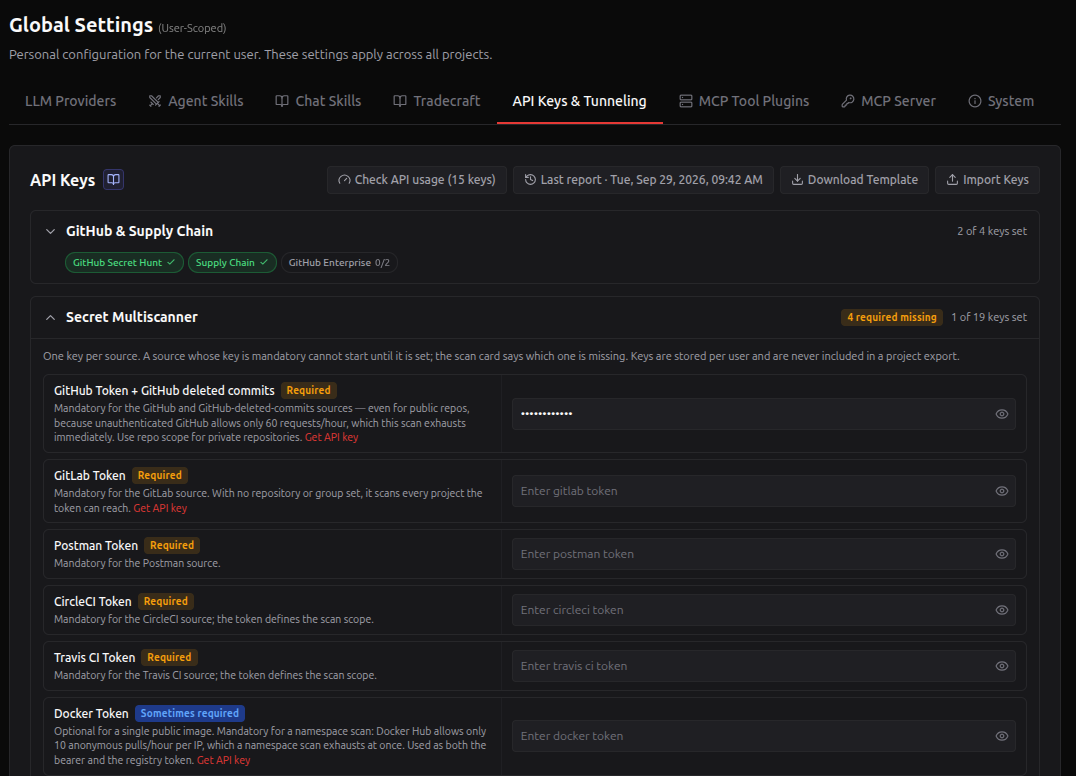
The button says how many keys a check would cover, rotation keys included (Check API usage (15 keys)). Once a report exists, Last report · <date> appears next to it. While a check runs the button reads Checking… since <time>; closing the report window does not stop the check, and the page picks up the result when it lands.
It calls only account and usage endpoints and never runs a search. The keys never reach your browser: the webapp makes the calls and returns numbers, plan names and the last 4 characters of each key.
The report groups the keys into:
| Section | Meaning |
|---|---|
| Errors | The check failed: key rejected, quota used up, rate limited, provider down, or an answer the parser did not recognise. Each row says what to do next. |
| Usage reported | The provider reported its numbers. A bar per quota, marked Low under 10% left and Exhausted at zero. |
| Valid, no usage API | The key works, but the provider exposes no quota to a normal key. |
| Not checked | No call was made, and the row says why: checking would spend credits, the key needs a paid plan to check, a companion value is missing, or there is no account API. |
The counters at the top of the report (errors, usage, valid, not checked) jump to their section.
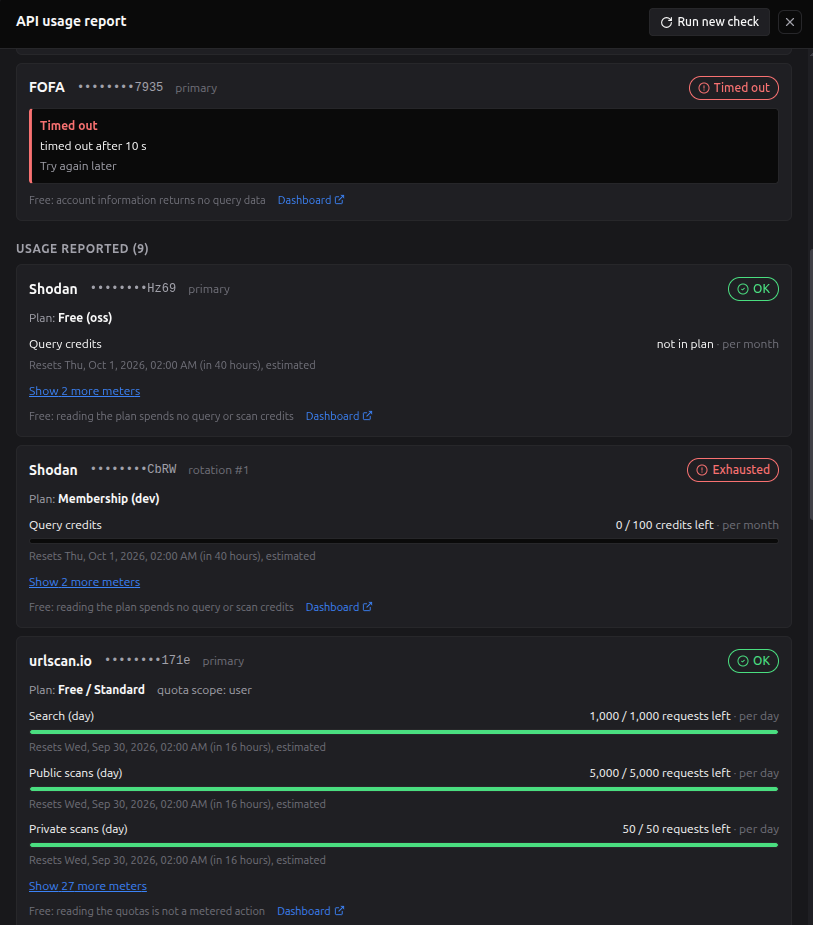
Each row is one key:
- Header: the service, the key's last 4 characters, which key it is (primary, or rotation #1, #2, ... for the Key Rotation list) and a status badge: OK, Low, Exhausted or Valid, the error in words, or why it was not checked.
- Plan: the plan or account type the provider reported.
- Meters: what is left out of the limit and its window (per hour, day, month, or a balance), with a bar, and when it resets. estimated means the reset date was computed from the provider's documented rule (for example the 1st of the month) because the answer did not include it. not in plan means the plan includes none of that quota: it never counts as exhausted. unlimited and not reported say what the provider did not give a number for.
- Show N more meters: secondary meters, such as short per-minute windows or quotas of other products on the same account. They never change the badge.
- Footer: what the check itself cost (almost always nothing) and a link to the provider's dashboard.
Error rows add the provider's own message (with the key and any email address removed), the HTTP status or provider code when there is one, and what to do next.
In the screenshot:
- FOFA did not answer within 10 s. The key may be fine: the row says to try again later.
- Shodan appears twice because a rotation key is configured. The primary key is on the free oss plan, which has no query credits (not in plan, so still OK). rotation #1 is a different account whose 100 monthly query credits are used up, so it is Exhausted. Rotation keys usually belong to separate accounts, each with its own quota, so each gets its own row: a healthy primary says nothing about the others.
- urlscan.io reports its daily quotas; the search, public scan and private scan limits are shown, and 27 more product quotas sit behind Show 27 more meters.
A few rules worth knowing:
- Top-ups. When a plan quota is used up but a top-up still pays for calls (SerpAPI extra credits, Tavily pay-as-you-go, ZoomEye-Points, ViewDNS prepaid queries), the row is Low, not Exhausted, and a note says the calls now spend the top-up.
- Censys Organization ID. A Starter or Enterprise token without its Organization ID, or with a wrong one, is reported as Not allowed for this key or plan: the token itself works, the Organization ID is what to fix.
- Secret Multiscanner GitHub token. It is checked against github.com. A token you use with a GitHub Enterprise endpoint set in a Multiscanner scan shows as rejected there, and the row says why.
- LLM Providers tab. Each provider card shows the last report's verdict for it, such as Balance $12.40 · 2 hours ago. After you change that provider's key, region or base URL, the card says Key changed since the last check instead.
- TypeSafe AI (Jev) spends a trace of credit. It is the one check that is not free. TypeSafe has no balance endpoint, so a key that works but has no credit looks fine until a billed call fails. The check lists models (free), then asks one tiny question, about 300 input tokens, roughly a hundredth of a cent. The row reads Valid when the account answered, Rejected for a bad key, and Quota used up when TypeSafe answers that there is no credit. The footer says what the check cost.
Saved report. The report is saved (one per user). Last report · <date> reopens it at any time. A new check replaces it after you confirm; the previous report cannot be recovered. A check runs at most once a minute. If your keys change after a report, it says so.
Running scans. If a scan or the agent is running on one of your projects, the check asks first: its calls can push the scan's Shodan, Censys, FOFA, Netlas or OTX requests into rate limits, and a rate-limited scan skips results.
Admins. An admin can read or run a user's check only while acting as that user. The report then says who ran it.
| Service | What the report shows |
|---|---|
| GitHub (all four tokens), Tavily, Shodan, SerpAPI, WPScan, urlscan.io, Censys, FOFA, VirusTotal, PublicWWW, Netlas, ZoomEye, 360 Quake, Onyphe, Driftnet, SecurityTrails, ViewDNS, Postman | Usage: plan, quotas and resets |
| Qianxin Hunter | Usage, from an undocumented endpoint (marked experimental). It often blocks servers outside mainland China |
| OpenRouter, DeepSeek, Kimi, Deepinfra (OpenAI-compatible preset) | Balance or key spending limit |
| ProjectDiscovery (PDCP), NVD, Vulners, AlienVault OTX, Criminal IP (it exposes no remaining credits), OpenAI, Anthropic, Gemini, Mistral, GLM, Qwen, xAI, Groq, Together AI, Fireworks AI, AWS Bedrock, GitLab.com, Hugging Face, AWS keys, GCP service account, CircleCI, Travis CI | Valid or not (plus the plan or identity where the provider gives it) |
| hunter.how, Google Custom Search | Not checked: every check would spend a query |
| Docker Hub | Not checked: verifying a token needs the account username |
| Jenkins, Elasticsearch, generic Git | Not checked: the host is chosen per scan |
| ngrok, chisel | Not checked: no account API |
| OpenAI-compatible providers on a custom base URL (Ollama, vLLM, LM Studio, ...) | Not checked: the report only calls the public preset hosts. Use the provider's Test button |
Small disclosed costs. A few checks use something, and the report says so on the row: NVD uses 1 of the 50 requests a key gets per rolling 30 s; ProjectDiscovery uses 1 request of its per-minute vulnx window; Postman counts 1 call toward the month's Postman API calls. For SecurityTrails, ViewDNS, Onyphe, OTX, Vulners and Qianxin Hunter the provider does not document the cost of its account endpoint (Netlas and ZoomEye do not either, but their counters were checked not to move).
Air-gapped hosts. Set API_USAGE_CHECK_ENABLED=false (or 0, no, off, in any case) in .env and restart the webapp to switch the check off (the webapp then makes no provider call). The last saved report stays readable.
Upload and manage custom attack workflow skills (.md files) that teach the agent exploitation techniques beyond the built-in CVE, brute-force, and phishing workflows.
Each skill card shows the skill name, description, and upload date, with actions to edit (name and description), download, or delete. Above the list, a search box filters by name and description, and a counter shows how many skills you have ("N of 1000").
-
Upload Skill and Upload Batch — pick one Markdown file, or up to 50. A review dialog lists every file with its name and description filled in from the file's frontmatter (the name from its first
#heading otherwise, else empty, with Use file name one click away). Names are at most 100 characters and unique among your skills, ignoring case and spacing; a taken name, or one used twice in the same upload, is marked with a free suggestion. Generate missing with AI writes the empty names and descriptions on your Skill names & descriptions model. Upload saves the whole batch, or nothing when a row is refused. See Uploading a New Skill. - Edit — click the pencil icon on any skill to rename it or update its description without re-uploading the file. Generate with AI fills an empty name or description from the skill's text; Save stores it.
- Delete — removes the skill, its plugin proposals still waiting for review, and its toggle in all project configurations.
- Badges — a skill saved from a plugin's proposal shows its version and source ("v3 · from My SQLi flow v2"); "N proposals" opens the review of a plugin proposal waiting for you; "Same name as another skill — rename one" marks names shared from before names had to be unique.
- Quarantined — a skill saved from a plugin version the catalog later revoked is turned off everywhere and shows a banner with Read (download), Release (only after you have read it; only you can release it) and Delete.
Uploaded skills appear as toggles in every project's settings, off until a project turns them on, so each project independently chooses which skills to enable (at most 20 per project). A project's Agent Skills tab and the chat's Agent Skills window have the same two upload buttons, and can turn the new skills on for that project as they are uploaded.
For details on writing skill files, classification, and built-in skills, see Agent Skills.
Upload and manage on-demand reference skills for the AI agent chat. Unlike Agent Skills above (which drive attack classification and phase-aware workflows), Chat Skills are tactical reference docs -- tool playbooks, vulnerability guides, framework notes -- that you inject into the agent's context on the fly using /skill <name> in the chat.
Each skill card shows the skill name, description, category badge, and upload date, with actions to edit description, download, or delete.
-
Import from Community -- bulk-imports all reference skills from the community folder (
agentic/skills/) into your library. The folder starts empty; click this to populate it with the 46 shipped skills (vulnerabilities, tooling, protocols, technologies, frameworks, Active Directory, cloud, post-exploitation). Skills with the same name are skipped. - Upload Skill (.md) -- upload a custom reference document with name, description, and category.
- Delete -- removes the skill from your library.
Skills uploaded here become available via /skill <name> in all your chat sessions.
For full details on the /skill command, writing Chat Skill files, and the complete comparison with Agent Skills, see Chat Skills.
Your personal library of trusted hacking-knowledge sites: wikis, docs sites, GitBooks, GitHub repositories, CVE PoC
archives, PDFs, blogs. RedAmon ingests each resource in the background (it maps the pages, gives each a card and
tags it, and for a Stored resource keeps a copy of every page). During an engagement, in every phase by default,
the agent searches the library and reads it one section at a time with tradecraft_search and tradecraft_lookup,
can ask the librarian, tradecraft_ask, and sees Library now, the pages that fit its next steps. Unlike
web_search (the open web through Tavily) or the Knowledge Base (pre-ingested corpora), the library holds only what
you added, and you decide what each resource keeps.

- Add Resource: a site by URL, or one of 105 presets (Quick add). Check URL says what the site is before you save; each resource has its own model, storage (Live or Stored), focus, site login and overrides of your settings.
- Resource cards: the job's stage while it runs (Refresh becomes Cancel), the last report, badges such as Ingested with older settings, and Map, the page list you can search, pin, block, rename and restore.
- Configure ingestion and Configure search: your account's ingestion settings (inherited by every resource) and how the agent searches (the librarian, synonyms, each resource's priority, Library now).
- Librarian model: the Tradecraft librarian of Models by feature, or Search only, which needs no model.
- In a project: every enabled resource is used unless the project's Agent Skills & Tradecraft tab turns it off.
- An account holds at most 200 resources.
Full operator manual: every field, badge, dialog and setting (all 95, with defaults and ranges), the Map view, who sees what, error codes, limits and troubleshooting: see the Tradecraft Library wiki page: the tab, the resource card, adding a resource, Live and Stored, Configure ingestion, Configure search, the settings, site logins, the Map view. What the agent does with the library: Tradecraft Lookup.
Plug any Model-Context-Protocol (MCP) server into the agent as a tool plugin — Shodan, GitHub, Burp Suite, Censys, your own internal tools — without editing code, rebuilding containers, or running migrations. Every tool the plugin exposes auto-appears in every project's Tool Matrix with phase toggles.
Two paths to add a plugin:
- Quick add — pick from 34 prefilled preset cards (DeepWiki, GitHub, Hugging Face, Shodan, VirusTotal, Censys, mitmproxy, Burp Suite, …). Click → form opens prefilled with everything except your API key.
-
Add MCP (red button, top right) — manual form for custom / internal MCPs. Three transports supported:
stdio(subprocess),streamable_http(recommended HTTP),sse(legacy HTTP).
stdio servers are for admins only. A stdio server runs its command inside the agent container, which holds every user's data, so only an account holding platform:agent_mcp can add, test or load one: every admin while RBAC_PERMISSIONS_ENABLED is off; with it on, an admin whose profile holds it or a member given it as an override. For anyone else the stdio presets and the stdio transport are greyed out, and a stdio server they saved before the update stays in their list, marked "stdio servers run inside the agent with every user's data; ask an administrator", and is not run. HTTP servers (streamable_http, sse) work for everyone.
Each saved plugin's tools are auto-injected into the agent's system prompt within ~1 second of Save (or at your next agent run, if another user's run on a different set of servers is using the agent: the save then says so). The orange Discover and add new tools button on the form runs a live MCP list_tools() against your draft and auto-imports the discovered tool list into your form — names, descriptions, and JSON-schema-derived args_format all populated automatically.
Full operator manual — every form field, every preset, the auth flow, the discovery workflow, the validation rules, troubleshooting, and the storage / security model: see the MCP Tool Plugins wiki page.
The opposite direction from MCP Tool Plugins, with RedAmon as the MCP server: here you mint access tokens that let an external AI agent (Claude Code, a CI job, your own agent) connect into RedAmon over MCP and act as you, inside your own projects. It can list projects, start and stop full recon scans, query the attack-surface graph in plain English or raw Cypher, and change recon tuning, each only if you ticked that permission. Tokens are read-only by default and shown once. Each row has a ⋮ menu with Onboard, Edit (name, permissions, expiry) and Delete, so you can narrow, extend, end or remove a token at any time. With the IAM console on, an administrator may cap how many tokens you hold and how long one may live: the form then offers only the lifetimes within the cap, no No expiry, and says how many of your tokens are in use.

Full guide: the tools, every permission a token can hold, rate limits, client setup, deploy gates and the security model are on the MCP Server wiki page.