
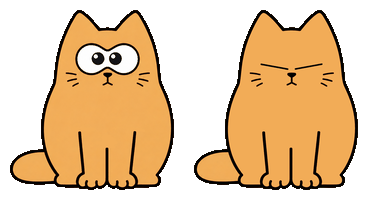


I made a cute little animated cat 🐈 for your desktop, with an interface in English, 中文, 한국어 and Русский.
It's a lightweight Python + Qt app - no borders, and you can drag it around easily.
Shows static first frame for 5 seconds, then plays GIF animation once, then loops back to static.
Switch the interface language any time under Settings → Language.
If you like it, maybe I'll share an AnimeGirl version next time~ 😉


Turn a few photos into your own cat. Right-click → Chars → Create custom with AI…, add 1–3 photos of the same person, edit the prompt (and a negative prompt for the self-hosted backends) to shape the character, pick txt2img (from the prompt) or img2img (from your photos), and generate with OpenAI or your own self-hosted Stable Diffusion (AUTOMATIC1111) or ComfyUI server — set its address in the dialog and pick the checkpoint from the live model list. It's saved as an ordinary local char you can reuse or delete anytime; reference photos are resized in memory and never stored by myCat. OpenAI needs your own API key (one request per generation) and returns a transparent cat; the self-hosted backends run on your own GPU.


Pick whichever is easiest - the cat runs on Windows, macOS and Linux.
Install from the yumiaura tap:
brew install --cask yumiaura/tap/mycatOr add the tap first, then install:
brew tap yumiaura/tap
brew install --cask mycat
Update:
brew upgrade --cask mycatUninstall:
brew uninstall --cask mycatGrab the build for your OS - each button downloads the latest release:




Then run it:
- Windows (x64) - download
mycat-windows-x64.exeand double-click it. This is a portable app; no installer or Python is needed. - macOS - unzip and open
mycat.app(first launch: right-click → Open to get past Gatekeeper). - macOS with Homebrew -
brew install --cask yumiaura/tap/mycat. - Linux
.deb-sudo apt install ./mycat-linux-amd64.deb. - Linux AppImage -
chmod +x mycat-linux-x86_64.AppImage && ./mycat-linux-x86_64.AppImage. - Linux snap -
sudo snap install mycat(keeps its own settings in~/snap/mycat/).
Builds for every release live on the Releases page.
The first WinGet package is awaiting approval. Until it is published, use the Windows download above.
Once the package is available, install it from PowerShell or Windows Terminal:
winget install --id yumiaura.myCat --exactOpen a new terminal and run mycat to launch the cat.
Update to the version available in WinGet:
winget upgrade --id yumiaura.myCat --exactTo remove it, run winget uninstall --id yumiaura.myCat --exact.
pip install mycat
mycat
On Linux also install the Qt platform plugin once:
sudo apt install -y libxcb-cursor0The activity diary can count key presses and clicks (never which keys) - it works out of the box on Windows, macOS and Linux/X11. Where global input access isn't available (e.g. Wayland) it degrades to recording the cursor path.
Upgrade or remove later with pip install -U mycat / pip uninstall mycat.
git clone https://github.com/yumiaura/myCat
cd myCat
pip install .
mycat # or, without installing: python3 mycat/main.py- Animated overlay 🐱 - a frameless, always-on-top, draggable cat. Right-click for the menu (switch char, quit).
- Reminder 🛩️ - set a message and a time (one-shot or daily) and the cat flies a little banner plane across the top of your screen. Right-click → Reminder… to set the message, direction, plane and color.
- Chat (Ollama) 💬 - talk to the cat through a local Ollama model, no account or API key needed (see below).
- Create with AI 🎨 - turn 1–3 photos into a custom chibi cat character with your own OpenAI key (right-click → Chars → Create custom with AI…). Reference photos are never stored; the result is an ordinary local char you can reuse or delete.
- Multilingual interface 🌐 — the whole UI is available in English, 한국어 (Korean), Русский (Russian) and 简体中文 (Simplified Chinese). Right-click the cat (or the tray) → under Settings… → Language to switch at any time; the choice is remembered. Translations live in plain
mycat/locale/*.jsonfiles, so adding a language is just dropping in a file.
The cat can chat using a model served locally by Ollama - everything stays on your machine, no API key required.
- Install Ollama and pull a model:
ollama pull llama3.1
- Launch mycat, then right-click the cat → Ollama…
- Set the host/port (default
localhost:11434), click Load models, pick one, hit Test, then Save and tick LLM enabled. - Right-click → Chat to start talking. 🐾
Run mycat (or python3 mycat/main.py from source) and customise it with command-line options.
--image, -i <path> 🖼️ - use a custom ZIP archive (containing one GIF) instead of the default cat:
mycat --image ~/my-custom-cat.zipA char ZIP must contain exactly one .gif: its first frame is the static pose, then the GIF plays once and returns to that frame. Images larger than 300×500 are scaled down automatically.
--pos <x> <y> 📍 - start at a specific screen position (otherwise the cat appears bottom-right and remembers where you last dragged it):
mycat --pos 960 540 # center of a 1920x1080 screen--wait <seconds> ⏱️ - how long to hold the static first frame before the animation plays.
--debug 🐞 - verbose per-frame logging.
- Left-drag the cat to move it.
- Right-click the cat for the menu (Chars, Reminder…, Ollama…, Chat, Quit).
- Quit from the menu or with Ctrl+C in the terminal.
The cat remembers its position and selected char between sessions in ~/.config/mycat/config.ini.
A char is just an animated GIF in a .zip - from a quick doodle to a fully
interactive cat with cursor-tracking eyes, blinking, sleeping and click
reactions. Step-by-step guide (draw it, build the GIF, package, install & share):
docs/CHARS.md.
Run the cat in a container with GUI forwarding to your host's X server.
Prerequisites: Docker, and an X server on the host (Xorg on Linux, VcXsrv on Windows, XQuartz on macOS).
# Linux
xhost +local:docker
docker compose up --build

# Windows (VcXsrv running, network clients allowed)
docker compose -f docker-compose.windows.yml up

# macOS (XQuartz running, network clients allowed)
docker compose -f docker-compose.mac.yml upCat appears in a black box / transparency doesn't work 🫥
- On X11 transparency needs a compositor. mycat falls back to clipping the window to the cat's outline when none is running, so this is rare; if you still see a box, enable display compositing (XFCE: Window Manager Tweaks → Compositor) or run a compositor such as
picom.
Window doesn't stay on top / doesn't show in the taskbar 📌
- Some window managers override "always on top" - restart the desktop session or check the WM settings.
Custom char doesn't load ❌
- The ZIP must contain exactly one valid
.gif. Check the path and that the file isn't corrupted.
Position not saving 💾
- Make sure
~/.config/mycat/exists and is writable; the config file is~/.config/mycat/config.ini.
Windows / launch issues 🪟
- Need Python ≥ 3.10 (
python --version) for the pip install, or just use the prebuilt.exe. - From the repo you can also launch with
run.bat(Windows) orrun.sh(Linux/macOS). - Verify PySide6:
python -c "import PySide6; print('PySide6 OK')".
Permission errors 🔒
- On Linux prefer a user install over
sudo(pip install --user mycat).
- Search the GitHub Issues for similar problems.
- Read CONTRIBUTING.md for development setup.
- Open a new issue with your OS, desktop environment, Python version and any terminal errors.
Thank you for reading to the end! 😸🐾

