



Tinta is a fast, lightweight Markdown and Mermaid viewer for Windows, built with Direct2D and DirectWrite for hardware-accelerated rendering. A single native executable of about 2.2 MB that opens instantly — no Electron, no web engine, no installer.
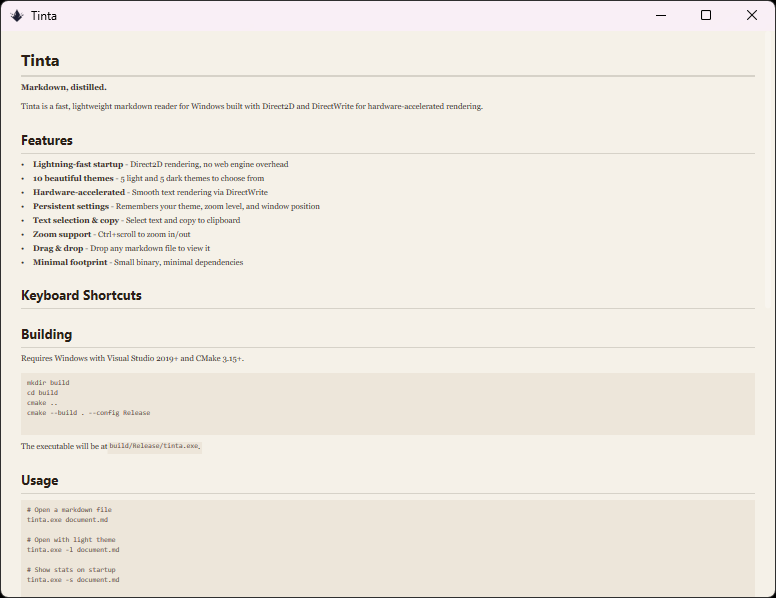
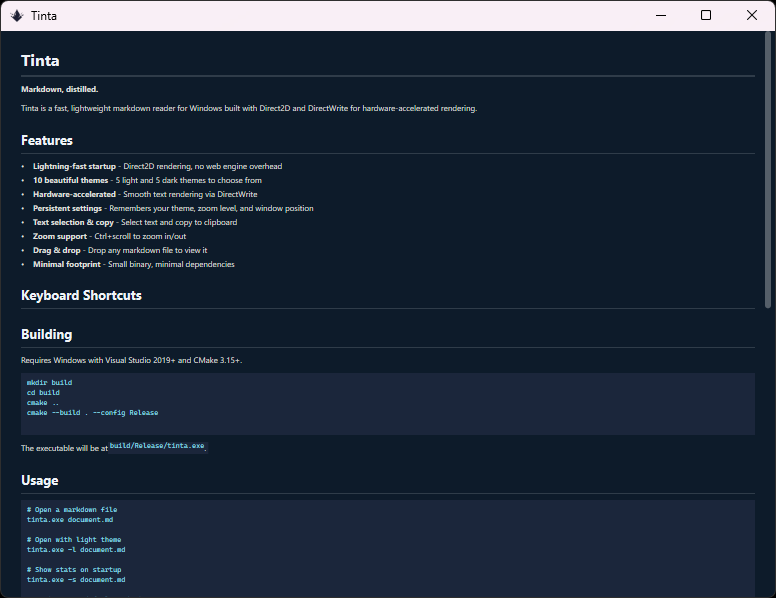
The recommended way is the Microsoft Store: the build is signed by the Store, trusted by Windows out of the box (no security prompts, works with Smart App Control), and updates automatically. The same signed build installs from the command line:
winget install "Tinta Markdown Viewer" -s msstorePrefer a single file? Grab the latest release: a portable tinta.exe, no installation required. Because a freshly released exe is not yet code-signed, Windows may show a SmartScreen prompt on first run ("More info", then "Run anyway") until the new version builds up download reputation.
Scoop users can install from the bucket:
scoop bucket add tinta https://github.com/oipoistar/scoop-bucket
scoop install tintaMost markdown apps ship an entire browser to render text. Tinta uses the GPU-accelerated text stack already built into Windows:
| Tinta | Typora | Obsidian | VS Code | |
|---|---|---|---|---|
| Startup | <100 ms | ~1.5 s | ~3 s | ~2 s |
| Install size | ~2.2 MB | ~90 MB | ~250 MB | ~350 MB |
| Runtime | Native Direct2D | Electron | Electron | Electron |
It's a viewer first: perfect as the double-click default for .md and .mmd files, for reading documentation and diagrams — with an edit mode when you need it.
- Lightning-fast startup - Direct2D rendering, no web engine overhead
- 10 beautiful themes - 5 light and 5 dark themes to choose from
- Hardware-accelerated - Smooth text rendering via DirectWrite
- Word wrap - Optional soft wrap in the editor (Ctrl+W)
- Native LaTeX math -
$inline$and$$display$$equations rendered natively (fractions, scripts, stretchy delimiters, Greek — no MathJax, no web engine) - Focused editing - Hide the preview pane while writing (Ctrl+E)
- Native Mermaid diagrams - 22 diagram families, from flowcharts with subgraphs through sequence, class, state, ER, gantt, and pie to C4, sankey, kanban, and radar - rendered without a web engine
- Export as HTML, DOCX, or PDF - Right-click and pick "Export as..." for a self-contained web page, a Word document that opens natively, or a vector PDF; diagrams and math come along in every format
- Pandoc export - With pandoc installed (or pointed at in settings), the editor offers EPUB, OpenDocument, PowerPoint, RTF and LaTeX too; rich formats convert from Tinta's own HTML export so diagrams and math survive as vector graphics
- Start page - Bare launches land on a launcher with recent files, quick actions labeled with your actual key bindings, and built-in guides; closing the last tab returns there, and Ctrl+T opens it as a new tab
- Review annotations - Select text and press
Ato attach a note, stored as an invisible HTML comment in the file itself. Annotated passages get a tint and a marker rail beside the scrollbar; hover previews, click edits, and a copy-for-agent button turns the whole review into a paste-ready task list for any coding agent - as the agent fixes items and deletes the comments, the marks vanish live - File references - Plain-text paths like
docs/plan.mdbecome real links: live targets open as tabs, missing ones render as faded ghosts. Mouse back/forward (or Alt+arrows) walks your jumps with exact scroll restore - Link peek - Rest the pointer on a local
.mdor wiki link and the target appears fully rendered in a panel beside it, no tab opened - Image lightbox - Click any inline image to view it full size: wheel zooms, drag pans, Esc closes
- Copy tables as TSV - Hover a table for a copy button that pastes into Excel or Sheets as a real grid
- Copy diagrams as images - Hover a diagram for an Image button that puts a crisp 2x PNG on the clipboard
- Paste screenshots - Ctrl+V a bitmap in edit mode and it saves as a PNG beside the document with the link inserted
- Pin on top - A pushpin in the title bar keeps the window above every other app
- Rich tables - Tables with bold, italic, code, and clickable links in cells
- Tabs - Win11 Notepad-style tabs in the title bar: files opened from Explorer join the window as tabs, Ctrl+Tab cycles, Ctrl+W or Ctrl+F4 closes (Ctrl+F4 also while editing, where Ctrl+W is word wrap), middle-click closes, Ctrl+T opens the file browser into a new tab, unsaved buffers show a dot, and dragging reorders tabs. Right-click a tab for close operations (close, close all but this, close all to the left/right) plus copy path and reveal in Explorer. Pulling a tab out of the strip floats it as a card: drop it on open space for a new window (which keeps the tab row), or onto another Tinta window to move it there — and dropping a single-file window onto a tab strip merges it back. Single-file windows stay tabless; turn the Explorer behavior off with the "Open files in tabs" setting
- Folder browser - Press B to browse and open Markdown or Mermaid files (Ctrl+click a file to open it in a new tab)
- Table of contents - Press Tab to see document headings, click to jump; the panel follows your reading position, and typing filters the headings
- Unified editor - Press
:to edit: your raw Markdown on the left with the rendered page floating beside it as a sheet on the editor's desk. A slim line-number gutter, a soft accent wash on the caret's line and its rendered block, a tool rail with formatting controls plus table-size and diagram-template pickers, and Markdown assists (lists continue on Enter, Tab indents, Ctrl+B/I wrap). Search and find-replace work in the editor too - Emoji shortcodes -
:rocket:and friends render as real emoji - Fit to width - Wide tables and diagrams grow a Fit button that shrinks them to the reading column
- Draft recovery - Unsaved quick notes are stashed continuously and offered back on the next launch
- Create on click - Clicking a missing file reference offers to create the file and opens it ready to type
- Text-file references -
.txt,.json,.yamland friends link like Markdown files and open as highlighted documents - Update check - Portable builds check GitHub once a day and offer a new release as a quiet, dismissible chip
- Search - Find text with F or Ctrl+F, cycle through matches with Enter; every match shows as a tick on the scrollbar
- Persistent settings - Remembers your theme, zoom level, and window position
- Portable mode - Create a
settings.ininext totinta.exe(an empty file works) and the whole configuration — settings, custom themes, languages, drafts — lives beside the executable and travels with it; without one, everything stays in%APPDATA%\Tinta - Localized interface - English, Simplified Chinese, Japanese, Korean, German, French, and Italian UI; follows Windows or a chosen language
- Text selection & copy - Select text and copy to clipboard
- Zoom support - Ctrl+scroll to zoom in/out
- Drag & drop - Drop any Markdown or Mermaid file to view it
- Minimal footprint - Small binary, minimal dependencies
| Key | Action |
|---|---|
B |
Toggle folder browser |
Tab |
Toggle table of contents (type to filter, Enter jumps) |
A |
Annotate the selected text |
F / Ctrl+F |
Open search |
Enter |
Next search match |
ESC |
Close overlay / Quit |
T |
Open theme chooser |
S |
Toggle stats overlay |
Ctrl+C |
Copy selected text (or all if none selected) |
Ctrl+A |
Select all text |
Ctrl+Scroll |
Zoom in/out |
Arrow keys / J/K |
Scroll |
Mouse back/forward / Alt+←/→ |
Walk link jumps with scroll restore |
Page Up/Down |
Page scroll |
Home/End |
Jump to start/end |
: |
Enter edit mode |
ESC ESC |
Exit edit mode |
Ctrl+N |
New quick note — a fresh window, start typing right away; Ctrl+S names it via the save dialog. While the note is still empty, an Open a file button (Ctrl+O) in the preview pane picks an existing file instead |
Ctrl+S |
Save (in edit mode) |
Ctrl+Shift+S |
Save As: the editor writes the buffer to a new path, the viewer saves a copy, and the document continues under the new name |
Ctrl+H |
Find and replace (in edit mode): Tab switches fields, Enter replaces, Ctrl+Enter replaces all |
Ctrl+P |
Print / export to PDF |
Ctrl+E |
Show/hide preview pane (in edit mode) |
Ctrl+W |
Toggle word wrap (in edit mode) |
Ctrl+F4 |
Close the current tab (viewer and edit mode) |
Q |
Quit |
Shortcut profiles (Settings → Keyboard shortcuts): pick Windows
(E edits, F1 opens help, F searches — the default), Vim (/
searches, : edits, ? helps), or Custom. The Edit button opens a
shortcut editor: click an action, press its new key. Raw : and ?
always work regardless of profile.
Settings live in a plain INI file at %APPDATA%\Tinta\settings.ini (theme,
zoom, window placement, word wrap, and more — written on exit). The [Keys]
section holds the Custom profile's bindings if you prefer editing by hand:
change a value and restart Tinta. Accepted values are letters, digits,
Tab, Space, F1–F12, or any single character.
[Keys]
search=F
browse=B
toc=Tab
theme=T
stats=S
quit=Q
newfile=N
zen=F11
scrollup=K
scrolldown=J
edit=:
help=?
Ctrl combos (save, print, copy, word wrap…) are fixed. The help overlay and context menu show whatever keys are currently bound.
Other settings of note: browserFocusPath=1 makes B open the file browser
with the path box focused and selected, so paste + Enter jumps anywhere
(also in Settings → General). tinta --new starts an untitled quick note
from the command line.
The interface language is available in Settings → General. It follows the
Windows display language by default, or can be changed explicitly. Transient
notifications and native error dialogs use the same language. Additional
translations can be added through languages.ini; the app remains a native,
single-file Windows viewer with no web runtime.
Requires Windows with Visual Studio 2019+ and CMake 3.15+.
mkdir build
cd build
cmake ..
cmake --build . --config Release
The executable will be at build/Release/tinta.exe.
# Open a Markdown file
tinta.exe document.md

# Open a Mermaid flowchart
tinta.exe diagram.mmd

# Open with light theme
tinta.exe -l document.md

# Show stats on startup
tinta.exe -s document.md

# Register for Markdown and Mermaid files
tinta.exe /register
Or simply drag and drop a .md or .mmd file onto the window.
On first launch, Tinta will ask if you want to set it as the default viewer for Markdown and Mermaid files. If you choose "No", you won't be asked again.
To register Tinta as the default viewer later, run:
tinta.exe /registerThis registers .md, .markdown, and .mmd so you can select Tinta as their default app in Windows Settings.
Tinta natively renders twenty-two Mermaid diagram families in .mmd files and fenced mermaid code blocks — no web engine involved:
- Flowcharts (
flowchart/graph) - TB/TD, BT, LR, RL layouts,subgraphgroups, common node shapes, directed and labeled edges,classDef/class/stylestyling, and graceful handling of Mermaid 11 edge IDs and node configs - Sequence diagrams - participants and actors with aliases and
<br/>breaks, every arrow family, activations, notes,autonumber, andloop/alt/opt/par/critical/breakframes - Class diagrams - member blocks, stereotypes,
~T~generics, all relation kinds with multiplicities,noteandnote for - State diagrams -
[*]start/end, choice/fork/join, descriptions, directions, inline notes - ER diagrams - attribute tables with keys, full crow's-foot cardinality notation
- C4 diagrams (
C4Context/C4Container/C4Component/C4Dynamic/C4Deployment) - persons, systems, containers, and components in the standard C4 palette, nested boundaries, labeled relations - Requirement diagrams - typed requirement and element boxes with labeled relations
- Architecture diagrams (
architecture-beta) - services with line-art icons, groups, junctions, and side-anchored edges - Block diagrams (
block-beta) - column grids, spans, spaces, nested blocks, block arrows, labeled edges - Sankey diagrams (
sankey-beta) - ranked nodes with smooth flow ribbons - Packet diagrams (
packet-beta) - 32-bit rows with labeled bit-range fields - Kanban boards - columns and cards with ticket, assignee, and priority metadata
- Treemaps (
treemap-beta) and radar charts (radar-beta) - Pie charts, git graphs, gantt charts (including the numeric
dateFormat Xaxis), mindmaps, timelines, user journeys, quadrant charts, and XY charts (xychart-beta)
Diagrams follow the active theme, print through Ctrl+P, export as SVG in HTML and as crisp images in DOCX, and their text is selectable and searchable like any other content. Anything a native renderer does not cover yet (composite states, zenuml) falls back to readable source code.
Press T to open the theme chooser:
Light Themes:
- Paper - Warm sepia, literary feel
- Sakura - Soft pink elegance
- Arctic - Cool blue-white
- Meadow - Fresh green
- Dusk - Warm gray twilight
Dark Themes:
- Midnight - Deep blue-black
- Dracula - Purple-tinted dark
- Forest - Deep green
- Ember - Warm charcoal
- Abyss - Pure black (OLED-friendly)
- MD4C - Fast markdown parser (fetched automatically by CMake)
- Windows Direct2D/DirectWrite (system libraries)
MIT